All Images
Introduction
Figure 1
Image 1 of 1: ‘Collaborative tracking in the public eye. Decorative image of no substance.’
Figure 2
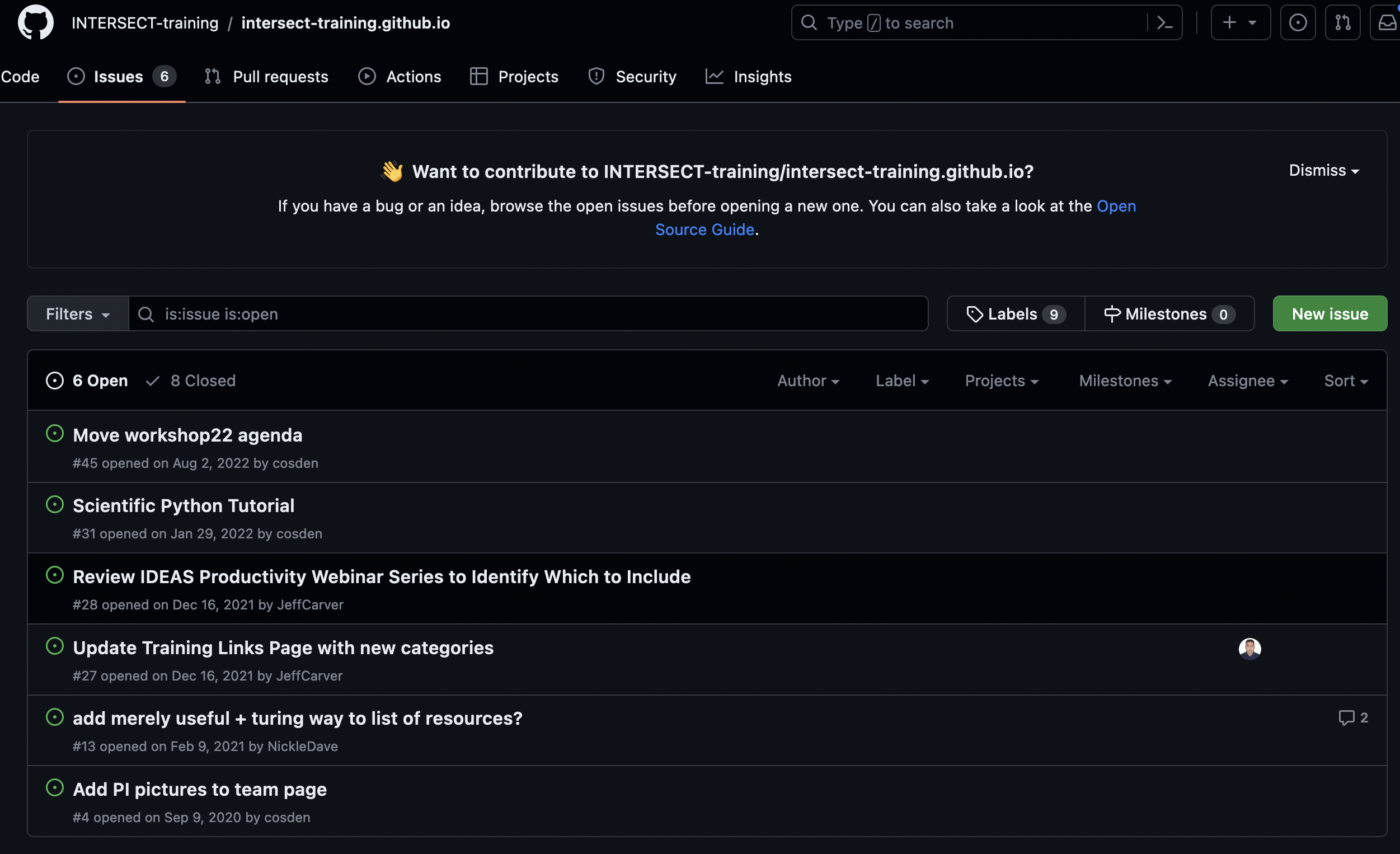
Image 1 of 1: ‘INTERSECT training repository navigation bar, showing, from left to right: Code, Issues, Pull Requests, Actions, Projects, Security, Insights’

Figure 3
Image 1 of 1: ‘INTERSECT training repository Issues pages’
Basic Issue Tracking
Figure 1
Image 1 of 1: ‘New issue button circled in red. Button is on the top-right on the Issues page.’

Figure 2
Image 1 of 1: ‘Submit new issue button is now highlighted and available to press’

Figure 3
Image 1 of 1: ‘A basic open issue based on the exercise above - Title "Mirandas First Issue", status "Open", basic content in the "Write" section’
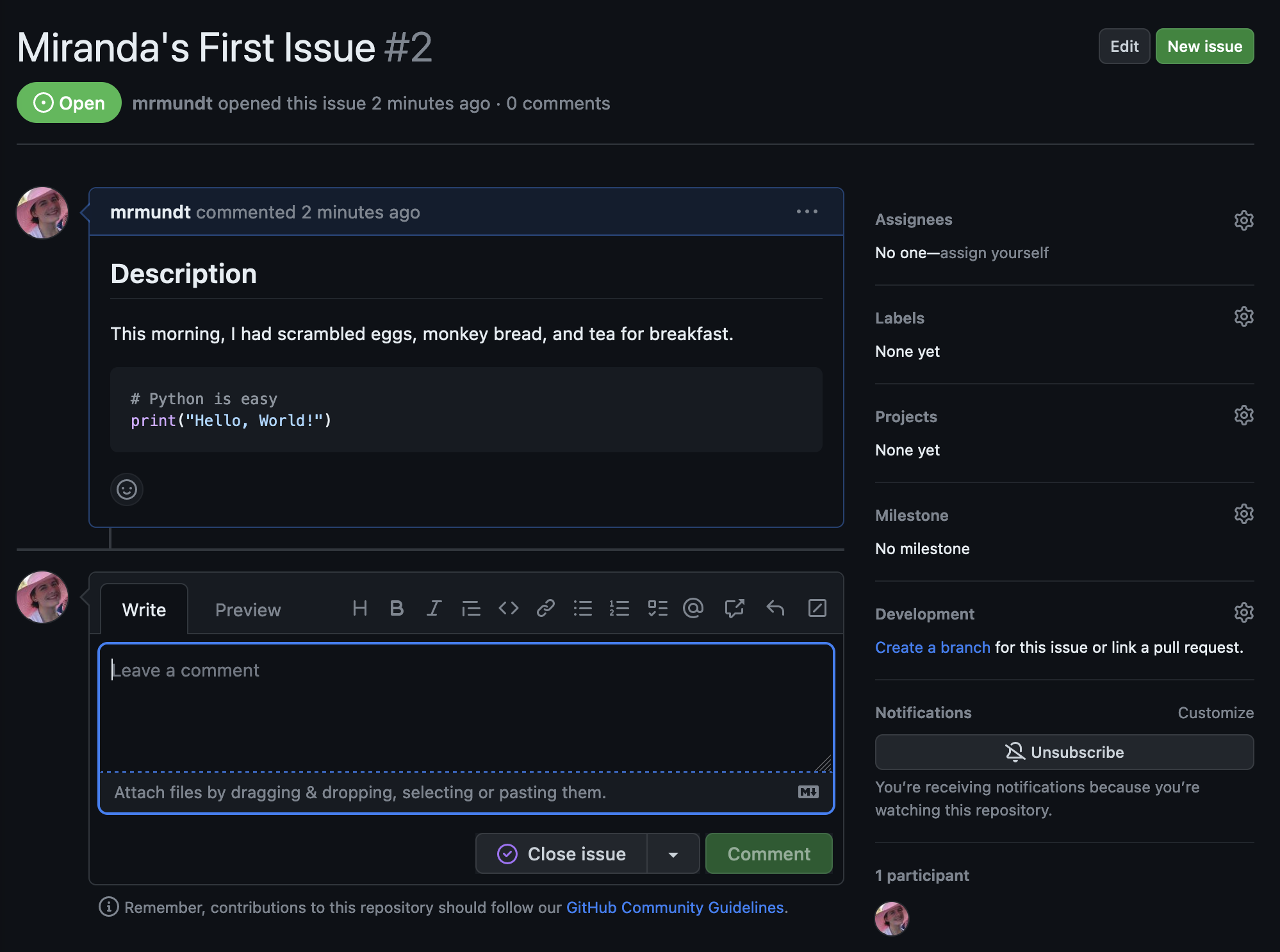
Figure 4
Image 1 of 1: ‘Image showing how to add a comment box on a new issue’
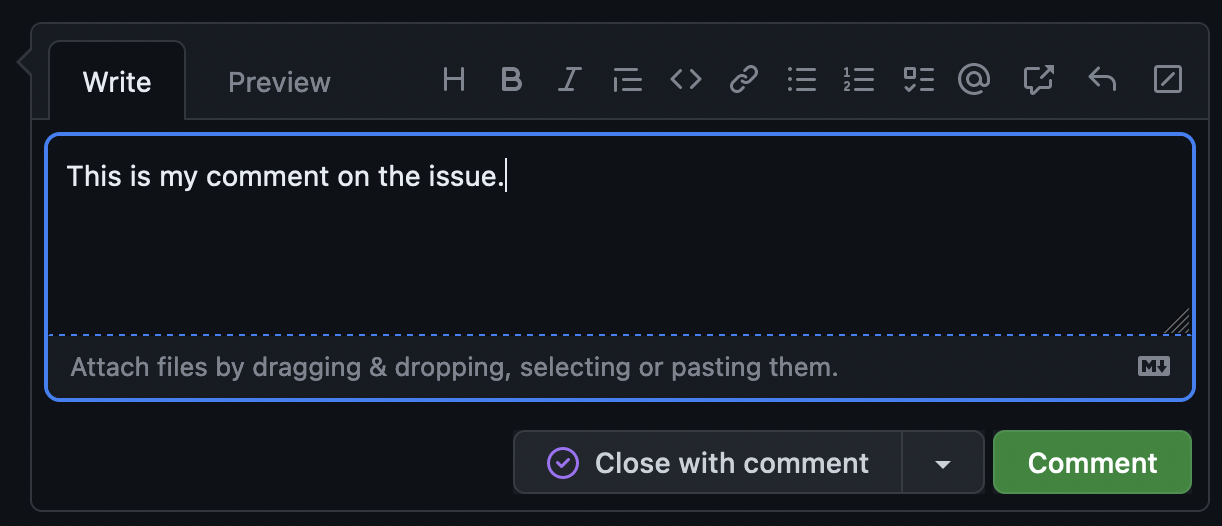
Figure 5
Image 1 of 1: ‘Close issue button with no additional features’
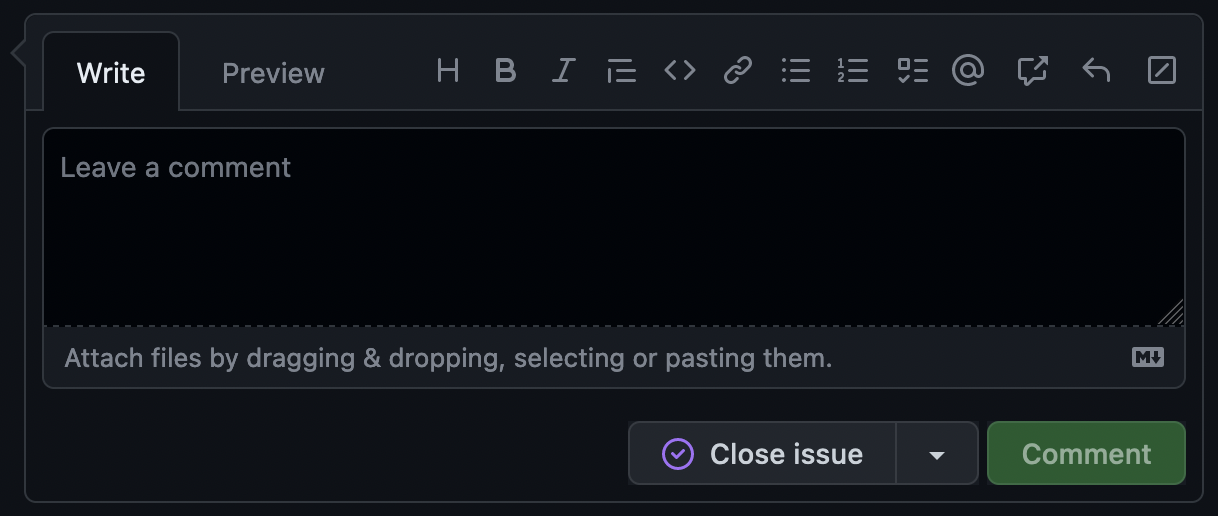
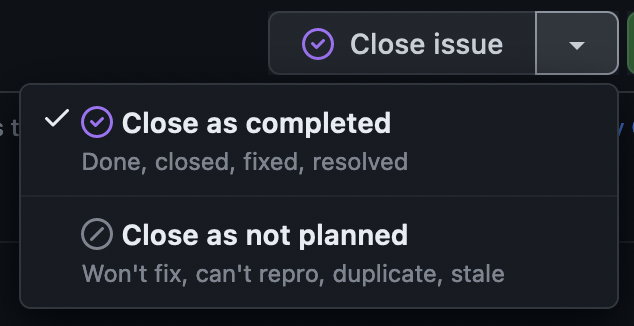
Figure 6
Image 1 of 1: ‘Extra Close issue button options displayed - "Close as completed" and "Close as not completed"’
Labelling Issues
Figure 1
Image 1 of 1: ‘The issue page with the labels option ("Labels - 9") highlighted’

Figure 2
Image 1 of 1: ‘The default set of labels, listed in the table above’
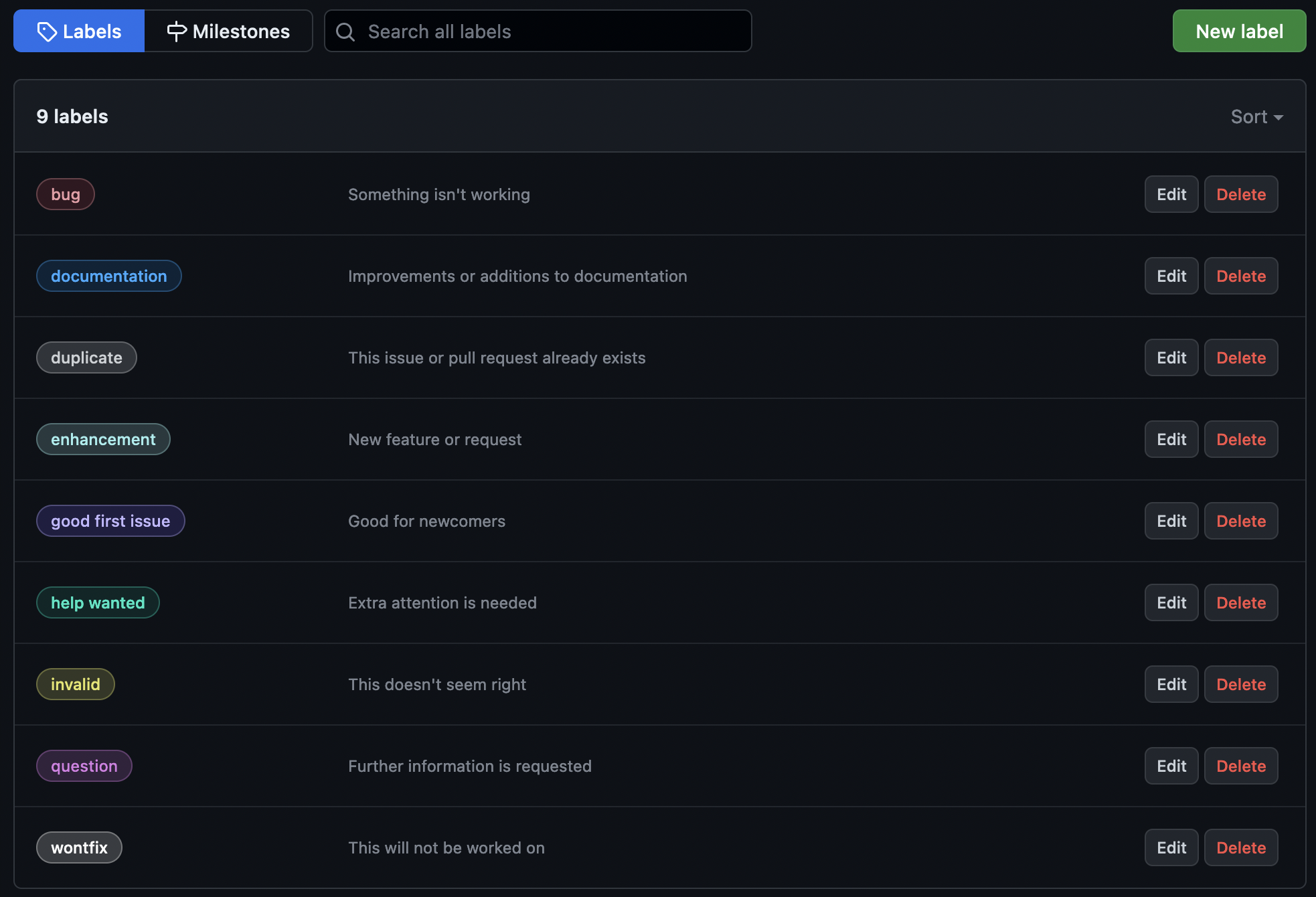
Figure 3
Image 1 of 1: ‘Label attributes - label name, description, color - and the buttons "Cancel" and "Save changes"’

Figure 4
Image 1 of 1: ‘Display of the "Apply Labels" dropdown from the main Issues page - shows all of the label colors and names’
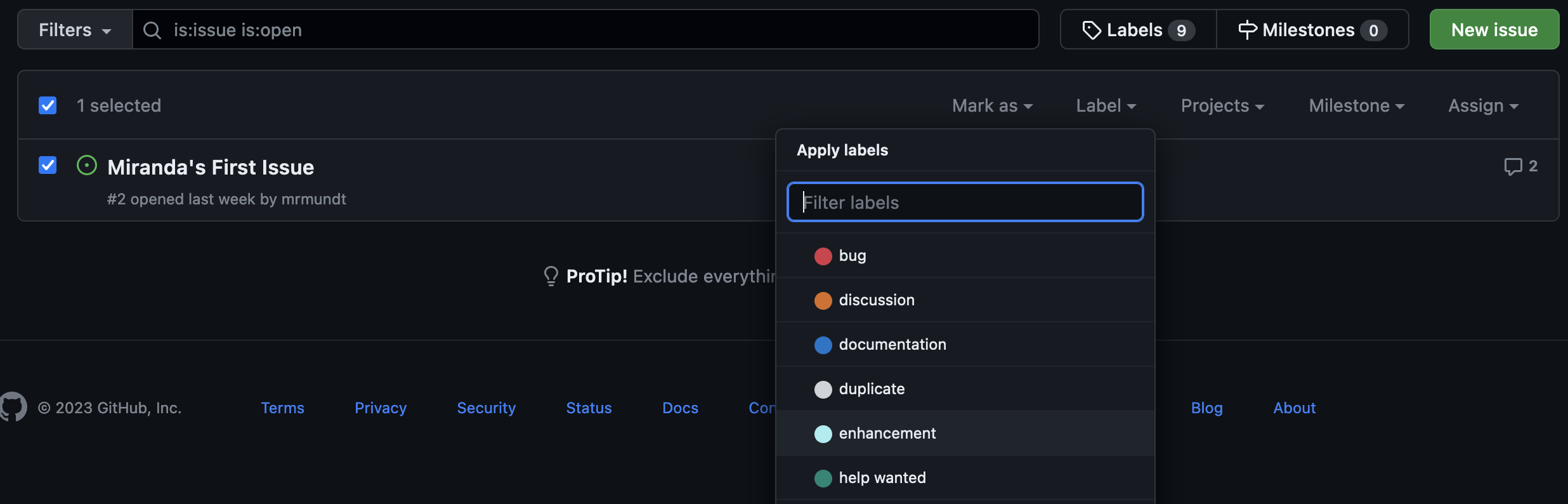
Figure 5
Image 1 of 1: ‘Highlighted Labels section on the right-hand side within a single issue (has been labeled "enhancement")’
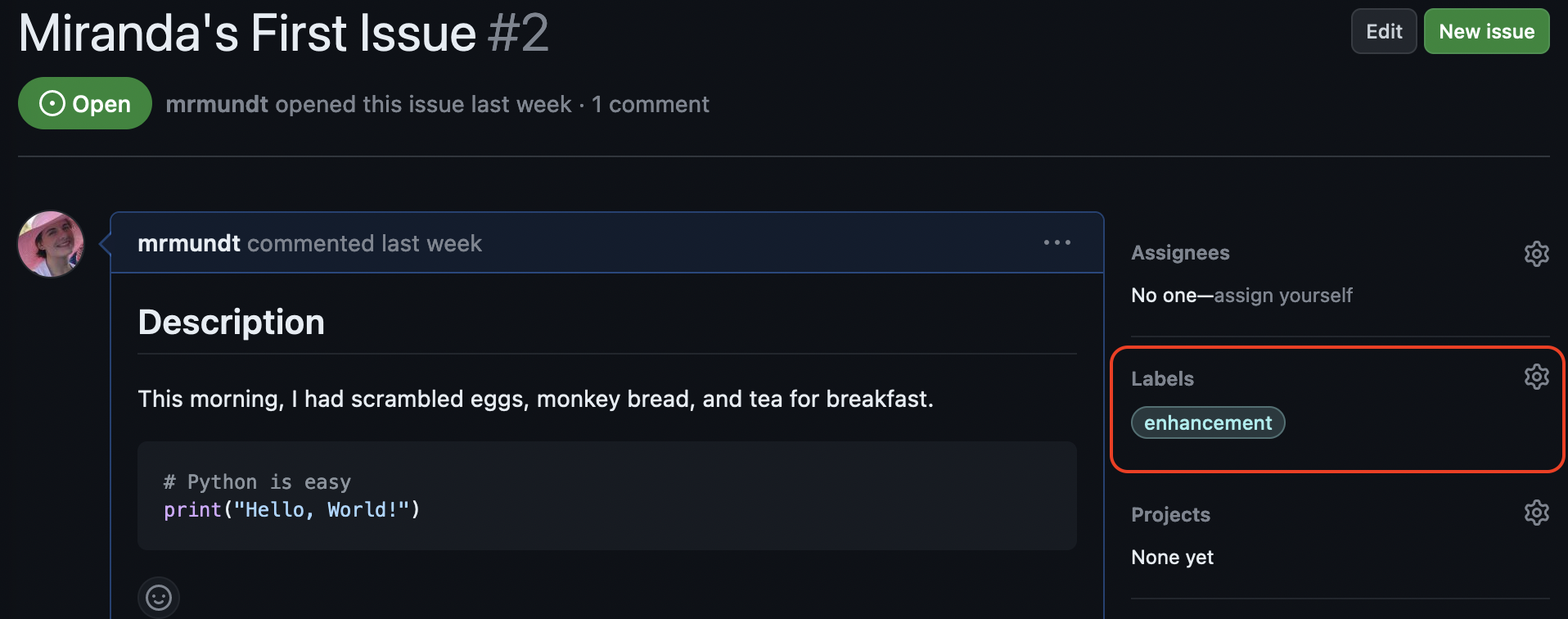
Figure 6
Image 1 of 1: ‘Cog-wheel option selected to reveal the label dropdown within a single issue’
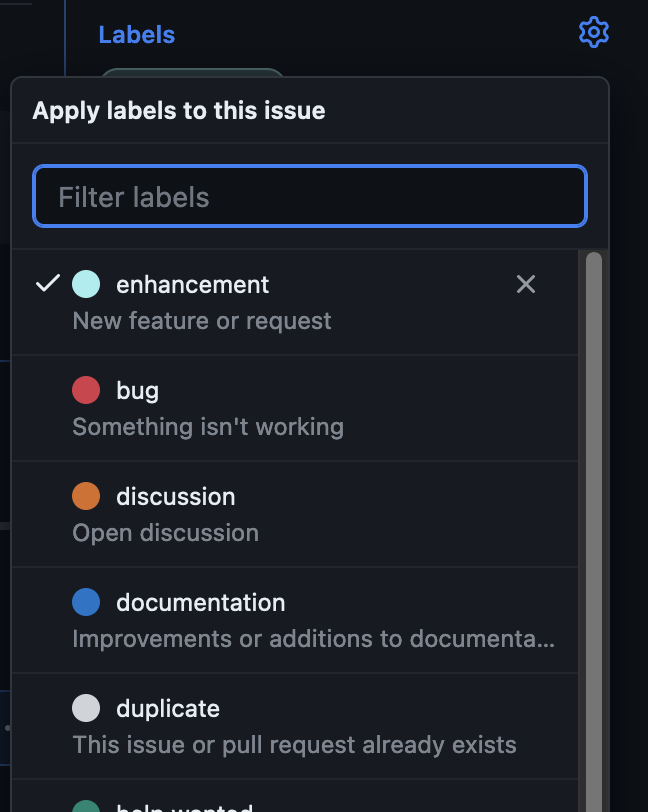
Figure 7
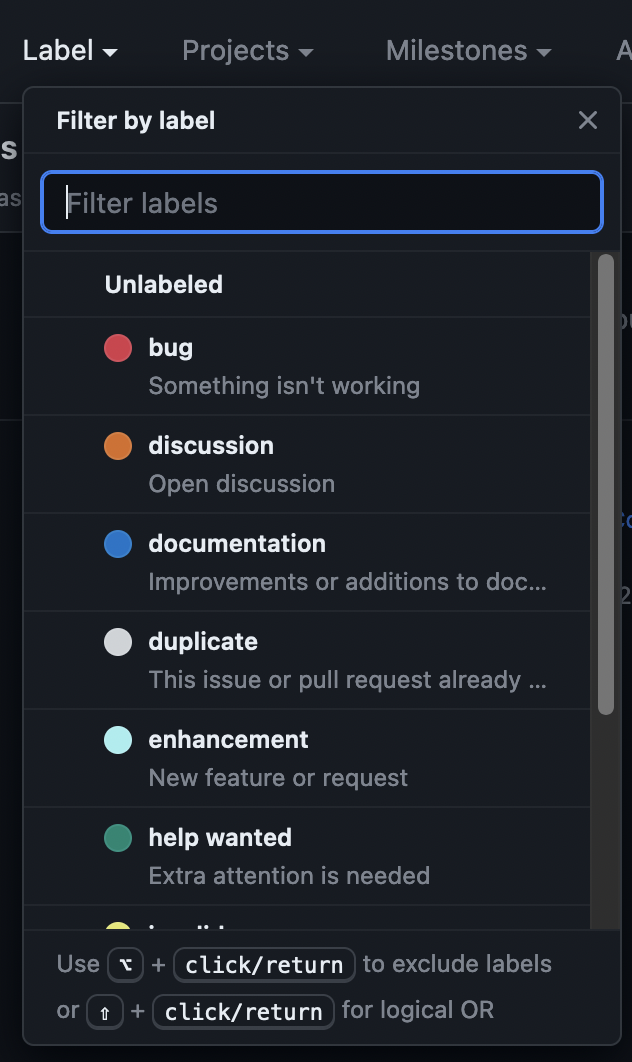
Image 1 of 1: ‘Filter by label dropdown on main Issue page - allows you to filter by a single label’
Issue Templates
Figure 1
Image 1 of 1: ‘GitHub repository navigation tabs with "Settings" circled. Located on the right-hand side of nav bar.’

Figure 2
Image 1 of 1: ‘GitHub settings features section, under Issues, set up templates button is highlighted’
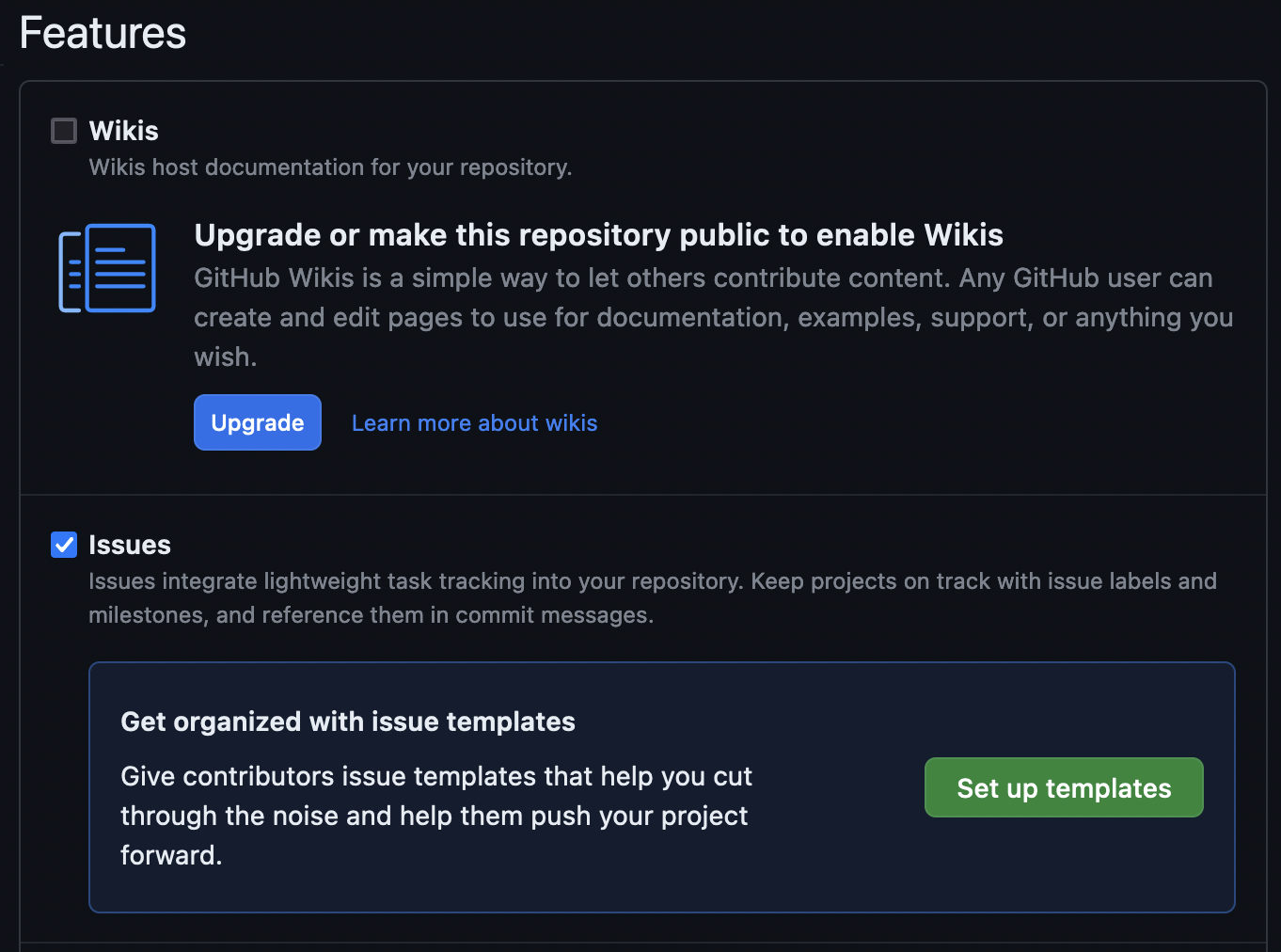
Figure 3
Image 1 of 1: ‘Add template dropdown with bug report, feature request, and custom template’
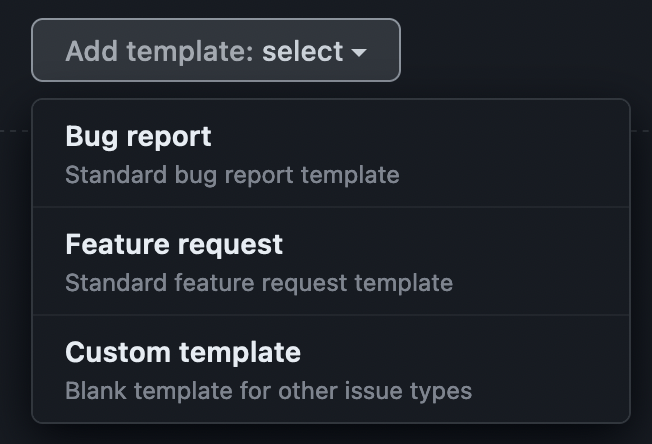
Figure 4
Image 1 of 1: ‘Preview of default bug report template that includes sections for "Describe the bug", "To Reproduce", "Expected Behavior", and more’
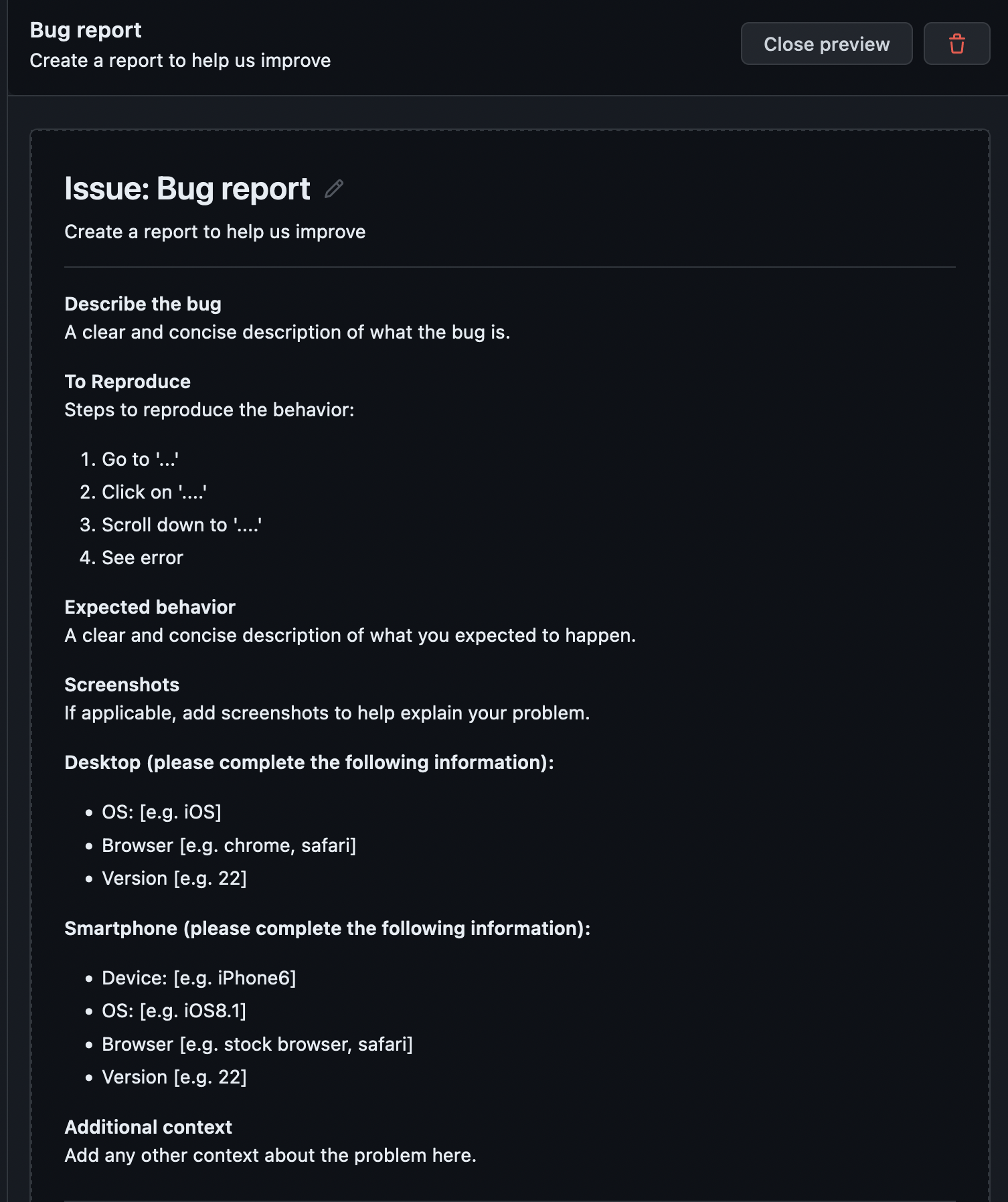
Figure 5
Image 1 of 1: ‘Propose changes commit message dialog box appears with the sections "Commit changes", "Commit message", "Extended commit message", and a radio button to commit to "main" or create a new branch’
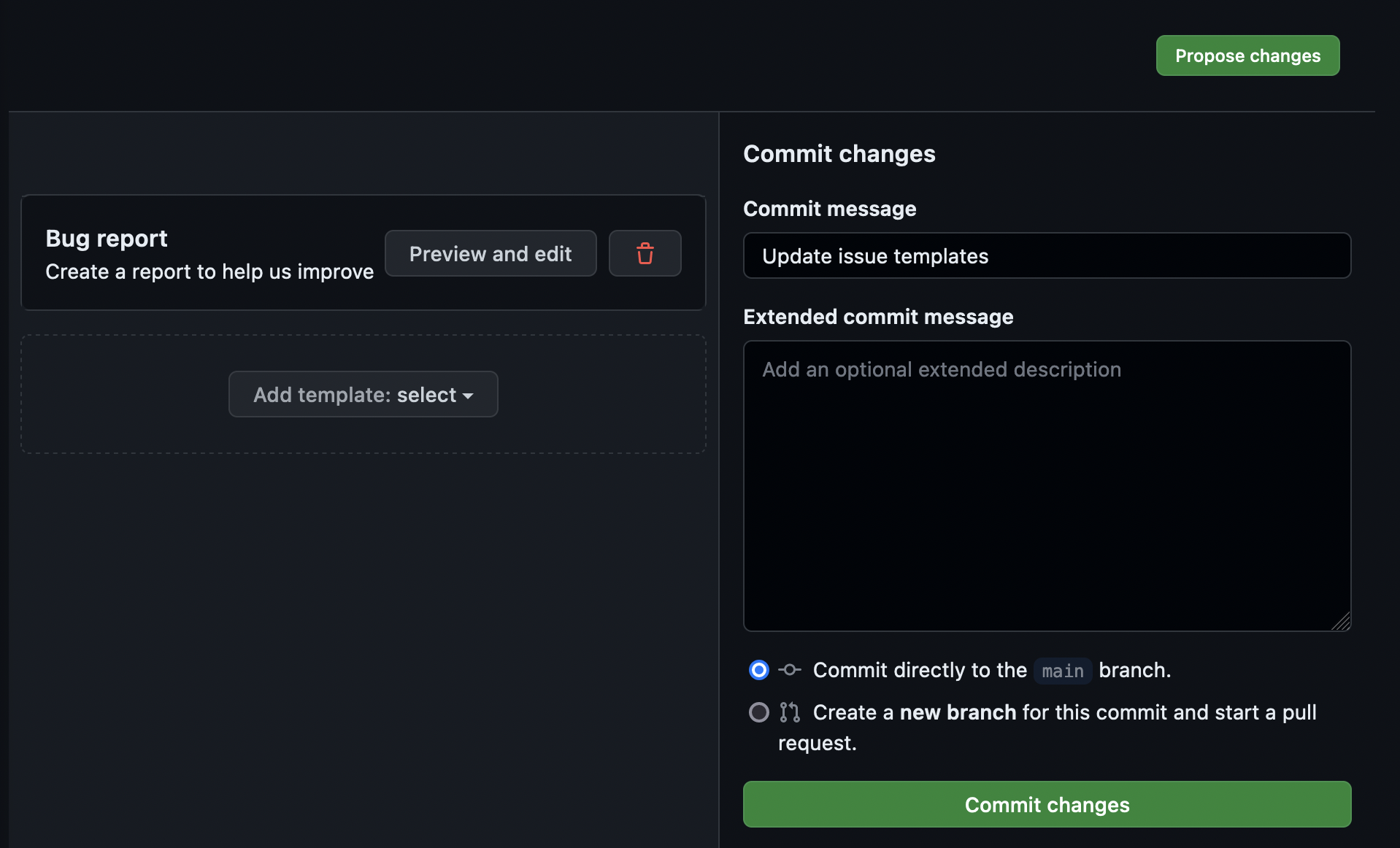
Figure 6
Image 1 of 1: ‘New issue page with a template created - there is now a "Bug report" template option’
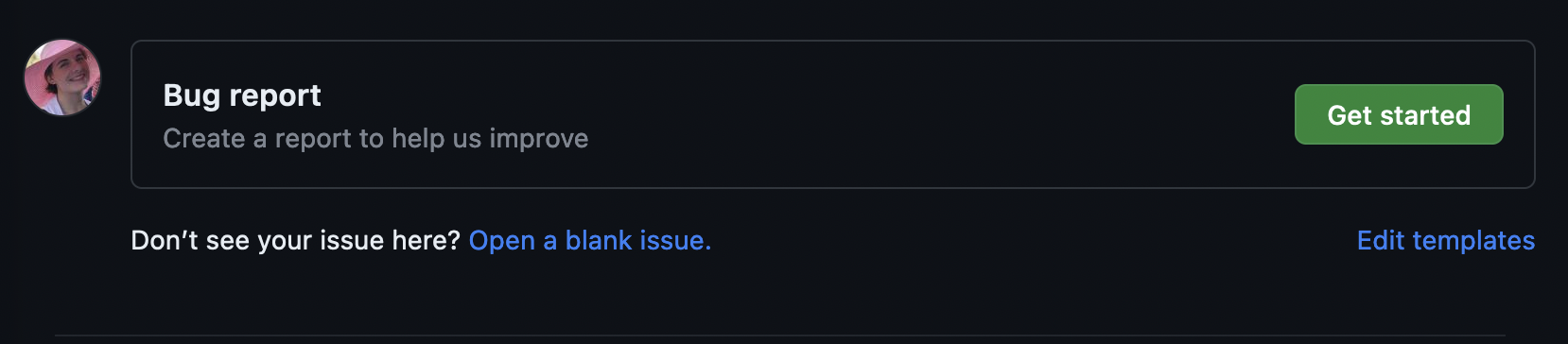
Figure 7
Image 1 of 1: ‘New `.github` directory on main repository page is shown - autocreated from the steps above’

Figure 8
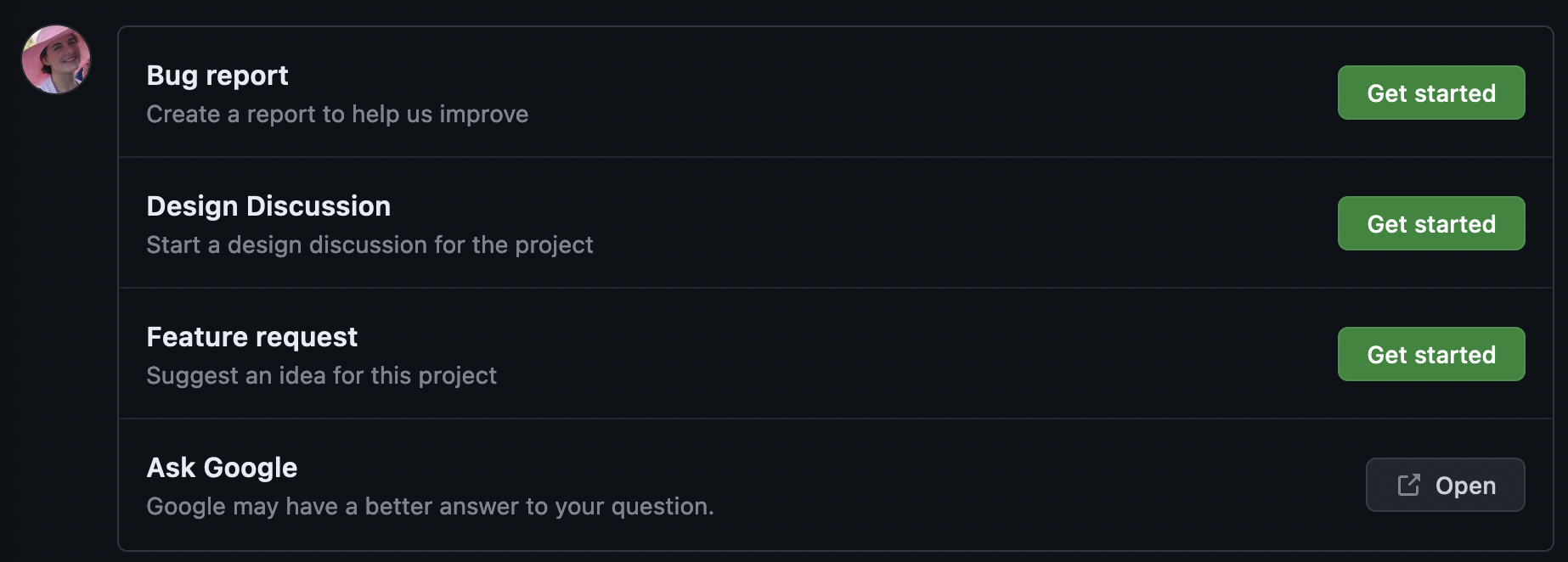
Image 1 of 1: ‘New issue page with three templates available - Bug report, Design discussion, and Feature request’
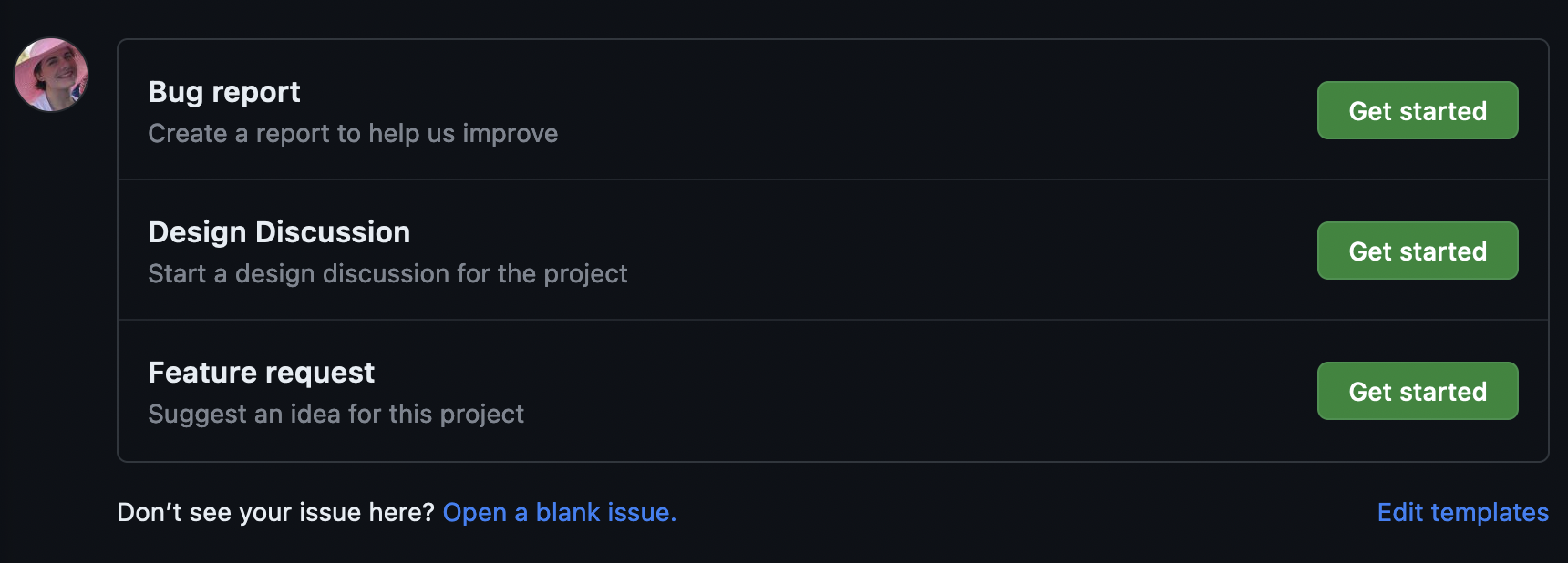
Figure 9
Image 1 of 1: ‘New issue page with three templates available - Bug report, Design discussion, and Feature request - plus an additional button with a custom external contact link’