
Basic Issue Tracking
Last updated on 2026-06-22 | Edit this page
Estimated time: 20 minutes
Overview
Questions
- What makes a good issue?
- How do you make an issue?
- How do you interact with an open issue?
- How do you close an issue?
Objectives
- Recognize what makes an issue clear and actionable.
- Become familiar with basic actions on GitHub Issues.
What Makes a Good Issue?
Anyone can click “New issue” and type “it’s broken.” The skill worth learning is writing an issue a teammate can actually act on without a follow-up conversation. A good bug report usually has:
| Ingredient | Why it matters |
|---|---|
| Clear, specific title | “Crash when sorting empty folder” beats “bug” — it’s findable and scannable. |
| Steps to reproduce | If we can’t trigger it, we can’t fix it. Number the steps. |
| Expected vs. actual | What should have happened, and what did. |
| Environment | OS, version, language version — the details that change behavior. |
| One issue = one problem | Don’t bundle five bugs in one ticket; they can’t be tracked or closed independently. |
A good feature request is similar: what you want, why (the motivation/use case), and any alternatives you considered. Keep these in mind for every issue you open today.
Open an Issue
Click the green New issue button (top-right of the Issues page) to start a new issue.

A new issue has a few parts:
- Title: displays on the main Issues page.
- Write: the details of the issue — GitHub supports Markdown formatting.
- Preview: shows the Markdown-rendered version before you submit.
Once it’s filled out, the Submit new issue button activates.

File Your First StarSort Bug
You’re testing StarSort and it crashes when you point it at an empty image folder. Time to file a proper bug report! In your practice repository’s issue page:
- Open a new issue with a clear, specific title
- In the “Write” section, add a
## Steps to Reproduceheading and number the steps. - Add a section for Expected vs. Actual behavior.
- Include a code block showing the (made-up) error message StarSort printed.
- Preview to check your Markdown, then submit!
GenAI: from messy notes to a clean report
Bug reports often start as a jumble: “it broke when the folder was empty, error said IndexError, was on my mac.” Try pasting notes like that into an LLM and asking it to format a bug report with steps to reproduce and expected/actual sections. Then check it against the good issue table — did it invent steps or details you didn’t give it? You supply the facts; the AI just tidies the structure.
On the right-hand side, there are more options that can be modified.
- Assignee: Here you can choose a specific person to this issue.
- Labels: Here you can add a label to the issue (we will discuss this more later!).
- Projects: Here you can add the issue to a project board.
- Milestone: Here you can add the issue to a milestone.
Interact with an Open Issue
There are many interactions available on an open issue.
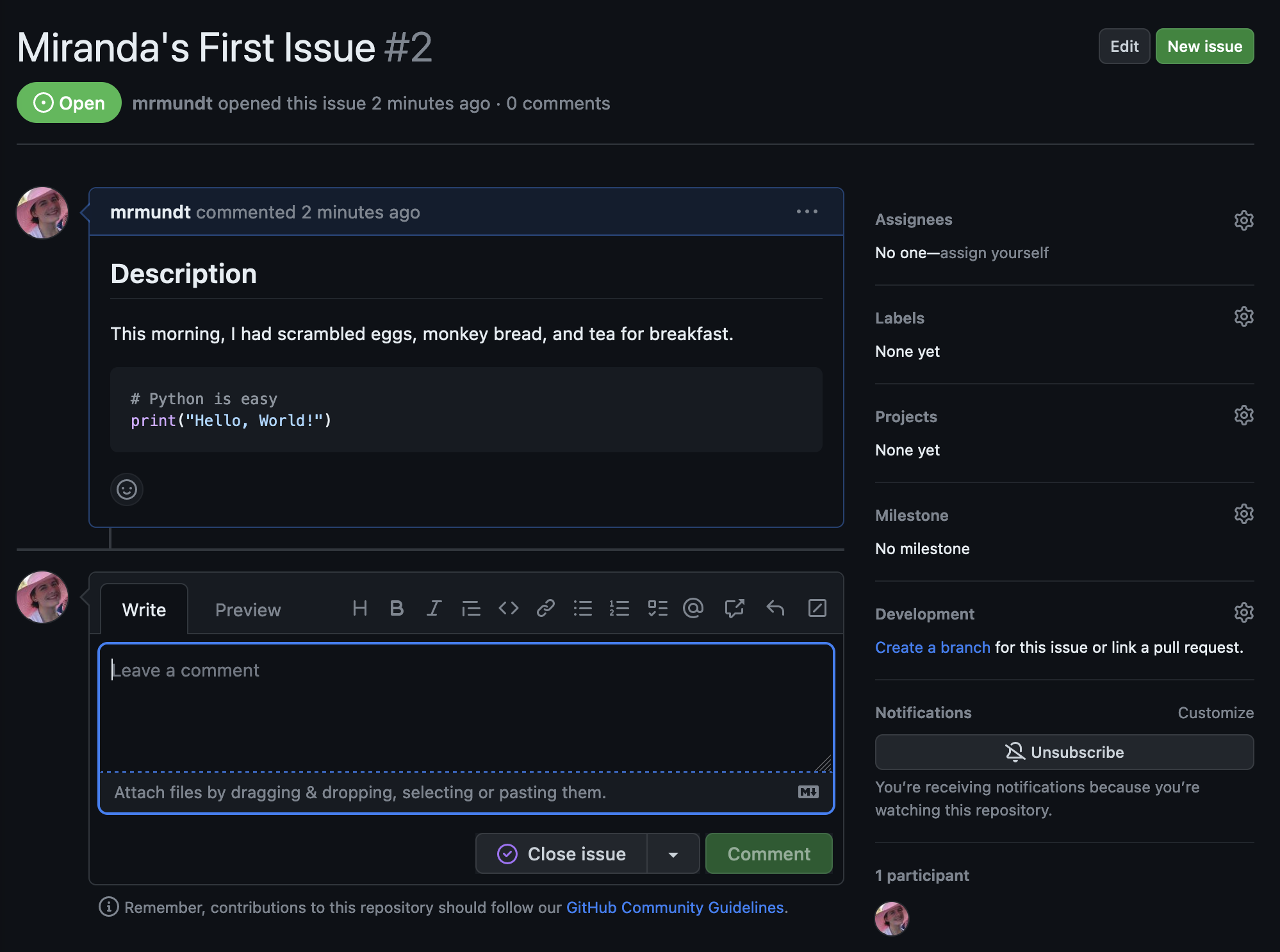
The most basic interaction with an open issue is leaving a comment. This is how you can interact with the issue author, the assignee, and others who have commented on or subscribed to the issue.
Simply click in the comment box at the bottom of the issue, type whatever you’d like, and click “Comment.”
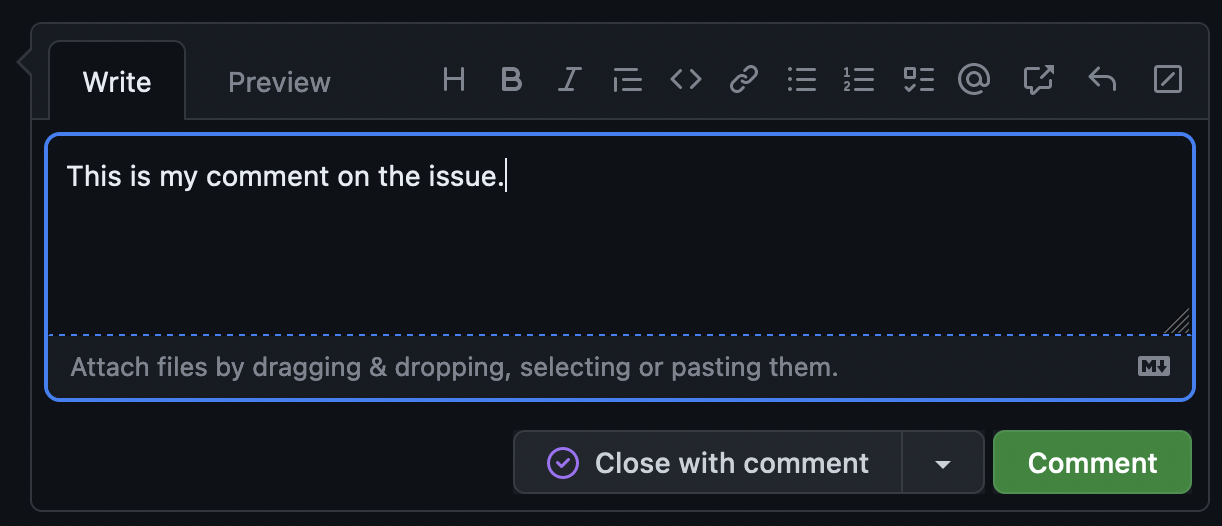
Close by mistake?
Did you accidentally click “Close with comment”? No worries, you can easily reopen it by clicking the “Reopen” button!
You can do other actions like “Edit” the title or original issue information, tag other users, link to other issues or pull requests, and more.
Loop in a Maintainer
A StarSort maintainer should know about your bug. Navigate to your issue from the previous exercise.
- Write a new comment on the issue, mentioning your instructor using
the
@symbol. - Add the comment to the issue.
Close an Issue
Good news — a maintainer “fixed” your StarSort bug! The work is done and the discussion is over, so we don’t want it cluttering up the open-issues list anymore.
Closing an issue is simple - just click the “Close issue” button.
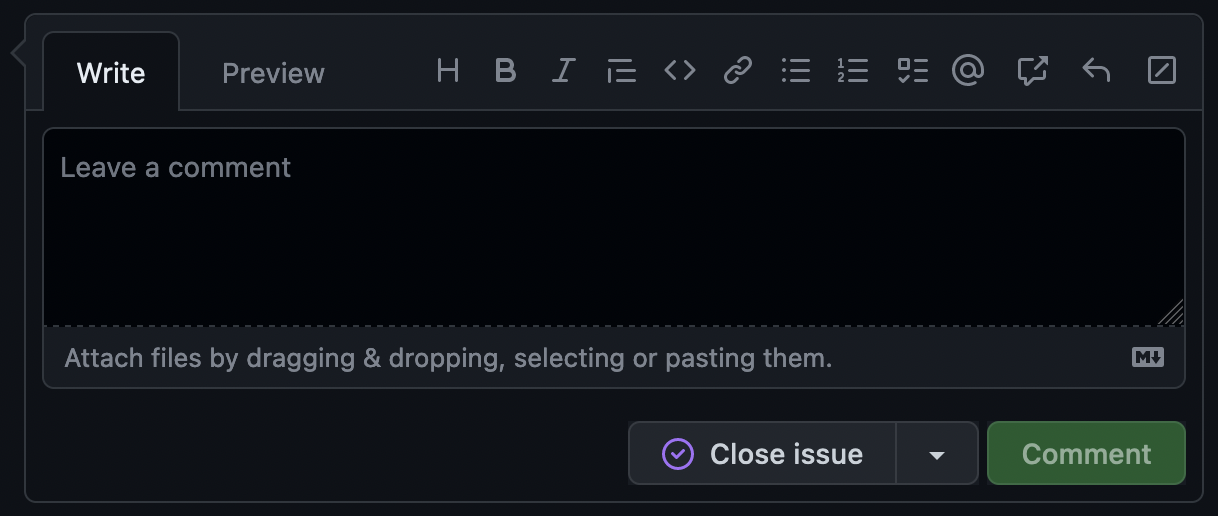
If you start to type in the comment box, this will change into a “Close with comment” button.
The dropdown to the right shows two more options:
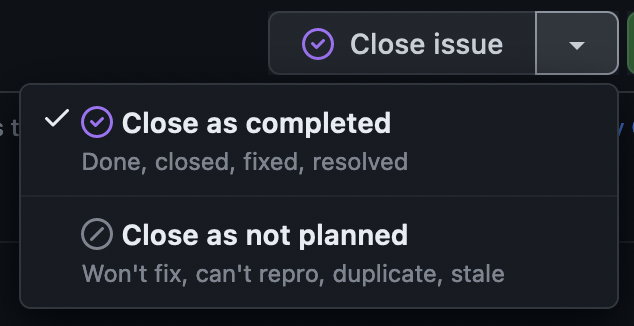
Issue Completed
Navigate to your issue from the previous exercises.
- Close the issue (no comment!)
- Reopen the issue
- Close the issue again with a comment of your choice
You now know the basic actions you can take on a GitHub issue!
- A good issue has a clear title, steps to reproduce, expected vs. actual behavior, and covers one problem.
- New issues can be opened in a repository using the ‘New issue’ button.
- Text on issues use Markdown styling for formatting.
- A user can interact with issues in multiple ways: commenting, mentioning others, linking to other issues and pull requests, and more.
- GenAI can format messy notes into a structured report, but you must supply and verify the facts.