
Labelling Issues
Last updated on 2026-07-14 | Edit this page
Overview
Questions
- How do you make and assign labels to issues?
- How do labels help you triage and prioritize work?
Objectives
- Learn how to make, modify, apply, and filter by labels for GitHub issues.
GitHub Labels
Each new GitHub repository comes with a set of default labels that can be assigned to issues, pull requests, or discussions.
From GitHub’s official documentation:
| Label | Description |
|---|---|
bug |
Indicates an unexpected problem or unintended behavior |
documentation |
Indicates a need for improvements or additions to documentation |
duplicate |
Indicates similar issues, pull requests, or discussions |
enhancement |
Indicates new feature requests |
good first issue |
Indicates a good issue for first-time contributors |
help wanted |
Indicates that a maintainer wants help on an issue or pull request |
invalid |
Indicates that an issue, pull request, or discussion is no longer relevant |
question |
Indicates that an issue, pull request, or discussion needs more information |
wontfix |
Indicates that work won’t continue on an issue, pull request, or discussion |
These labels can be viewed from the Issues and Pull Requests pages.

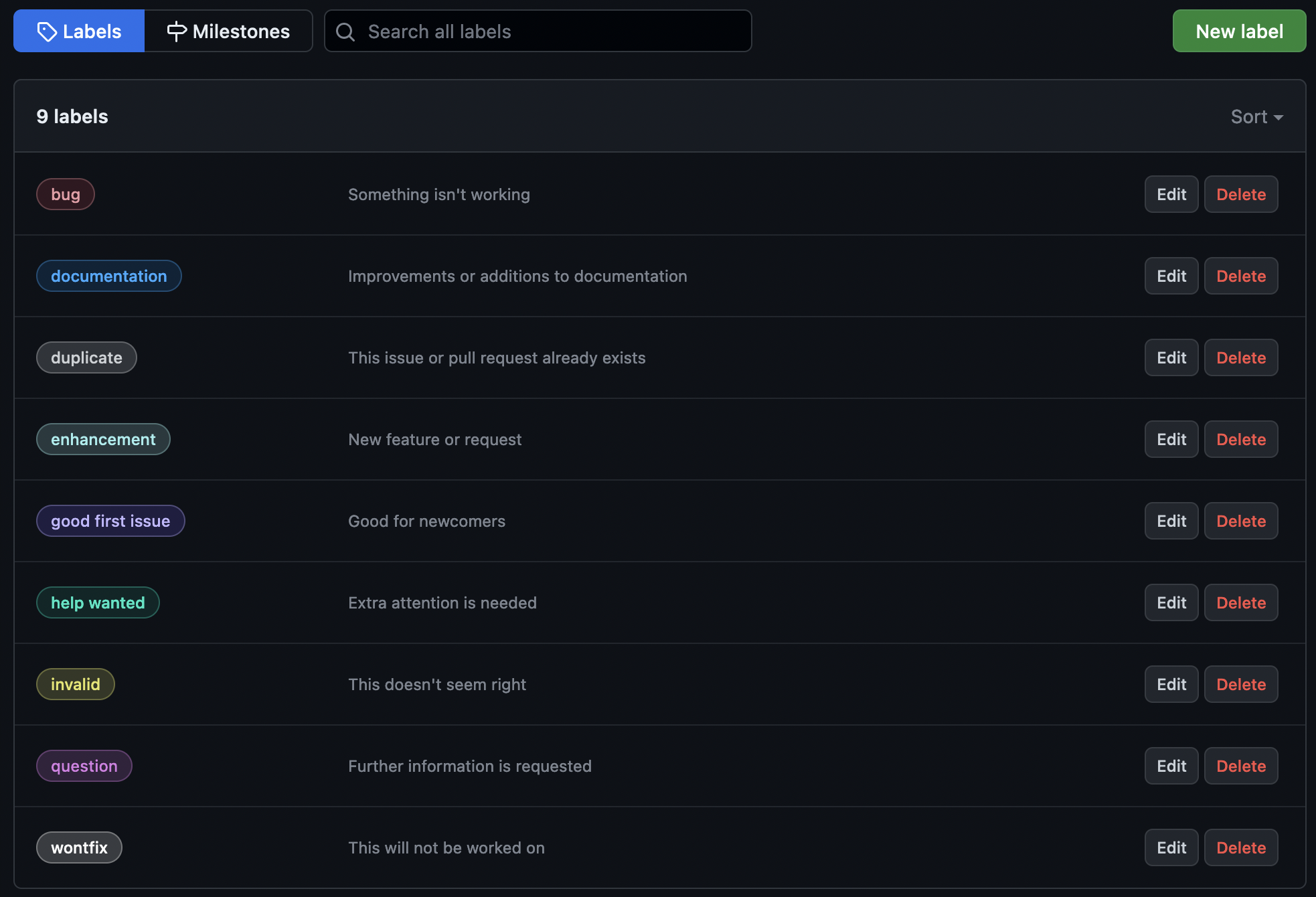
Several of these labels are aimed towards large, open-source communities with many collaborators. This is not always the case in Research Software Engineering, however, so we will need to modify these.
Modifying Labels
Labels can be added, edited, or deleted from the Labels page. Each label has three attributes: a name, a description, and a color (hex code).

Tidy Up StarSort’s Labels
The StarSort maintainers want the label set to fit their small research team. In your practice repository’s Labels page:
- Add a new label for
discussion - Remove the label for
good first issue - Change the color of the
wontfixlabel to your favorite color
Using Labels
Now that the labels are created, they can be assigned to issues.
Labels can be applied from the main Issues page or within a single issue.
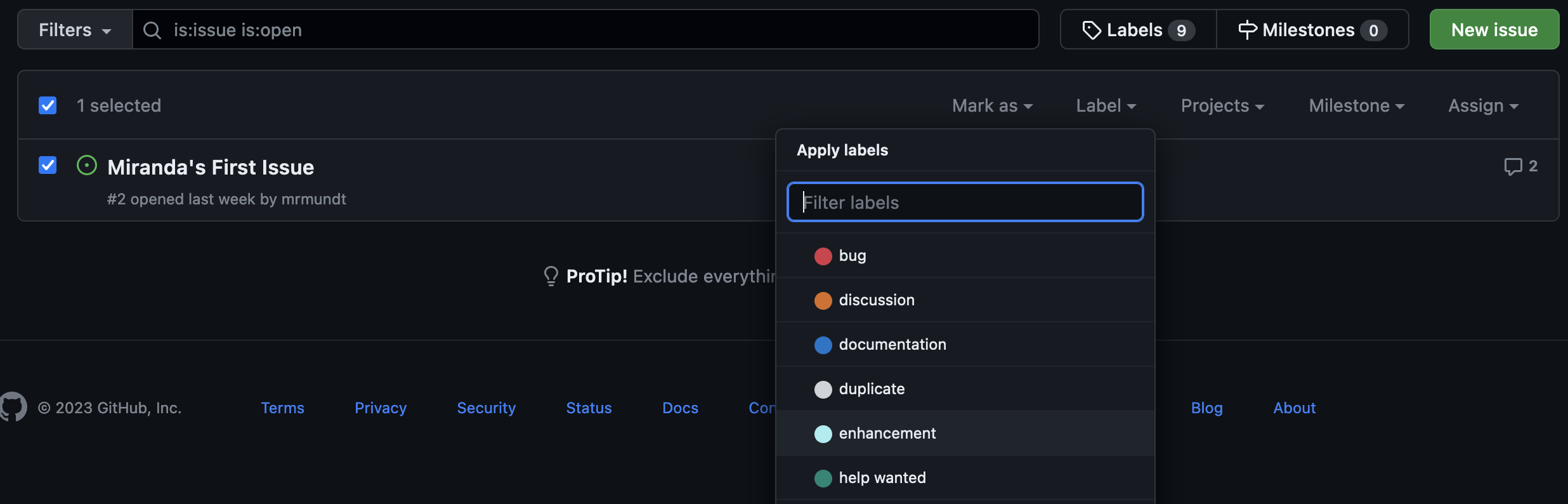
From the main Issues page, simply checkmark the issue, hit the “Label” dropdown, select your preferred label(s), and click outside of the dropdown.
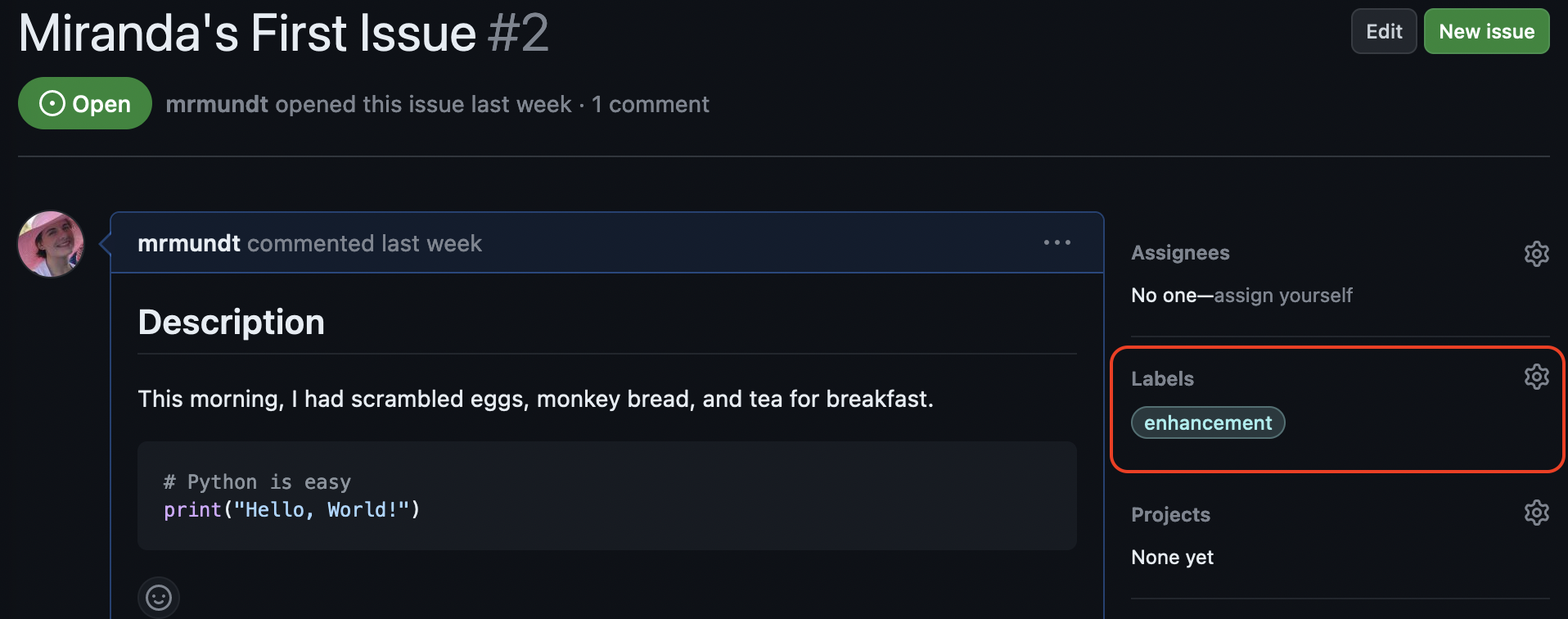
To apply within a single issue, click on the issue to open it. Then you will see the “Labels” option on the right-hand side.
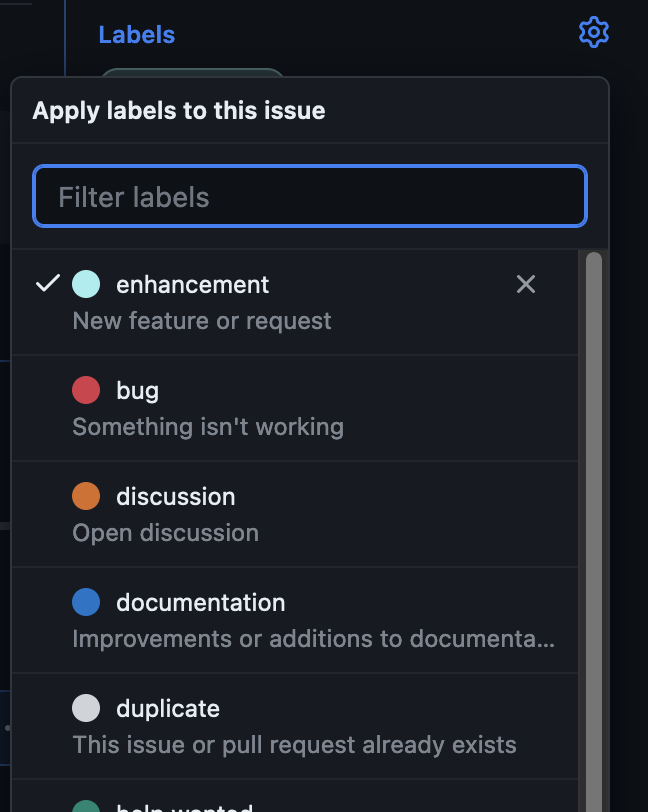
Click on “Labels”. A dropdown will appear in which you can select or deselect your preferred label(s).
Triage Time
A new idea came in for StarSort: supporting a new image format. In your practice repository’s issue page:
- Create a new issue entitled “[YOUR NAME]: support FITS image format”
- Add the
discussionlabel so the team knows it needs further discussion
GenAI: Triage assistant
Faced with a backlog of 50 unlabeled issues? An LLM can read an issue’s text and suggest a label (bug, enhancement, question…) or even a priority. It’s a great way to get a first pass — but a human should confirm before the labels drive real decisions, since a mislabeled issue hides in the wrong filter.
Filter by Labels
Another feature of labels within GitHub is the ability to filter issues by them. This is a powerful and useful feature for any project that uses GitHub Issues for tracking, organizing, and prioritizing work.
To filter, navigate to the main Issues page. With no issue selected, click the “Labels” dropdown again. You’ll see that this dropdown now says “Filter by label” rather than “Apply labels.”
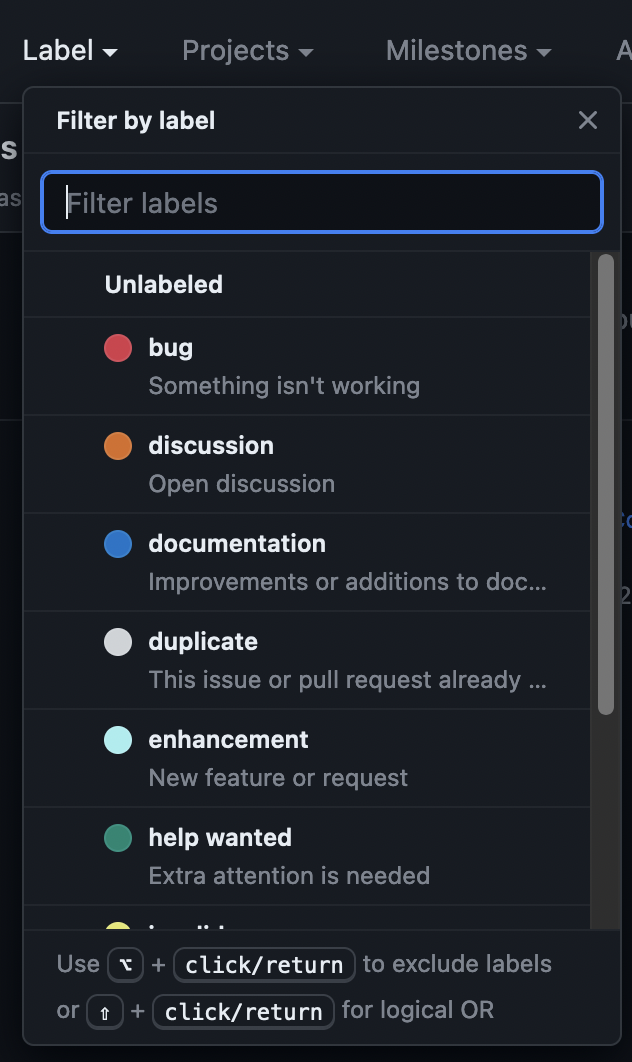
Click on a label in the list to filter by it. GitHub will only show issues that have that label applied.
You can select multiple labels or use the hints at the bottom of the “Labels” dropdown to do more advanced filtering, such as exclusion.
Filter Like a Pro
Let’s go back to some real research software. Navigate to https://github.com/spack/spack and find the issues page.
- Filter by the
environmentslabel? - Filter by both the
environmentsandbuglabels? - (CHALLENGE) Filter by
macOSbut excludebug?
The last one uses the exclusion syntax in the search bar:
is:issue is:open label:macOS -label:bug.
You now understand how to make, change, apply, and filter by labels in GitHub Issues.
- Labelling issues can help with organization and filtering.
- Curate the default label set to fit your project and team size.
- Filtering (including exclusion, e.g.
-label:bug) makes a big backlog manageable.