
Issue Templates
Last updated on 2026-07-13 | Edit this page
Overview
Questions
- What are issue templates?
- How do you make issue templates?
- How do you customize the template chooser?
Objectives
- Learn how to make issue templates.
- Learn how to customize templates and their appearance.
What are Issue Templates?
Issue templates in GitHub are a way to pre-fill new issues with specific sections, data, instructions, etc.
They are customizable for every project. You can add as many templates as makes sense for your project, or you can have none at all.
Remember the good-issue table from earlier? A template is how you incorporate those items right into the “New issue” experience, so every contributor’s bug report comes with steps-to- reproduce and expected-vs-actual sections already laid out. It’s the StarSort maintainers’ favorite trick for getting reports they can actually act on.
In this episode, we will learn the basics of issue templates.
Default Issue Templates
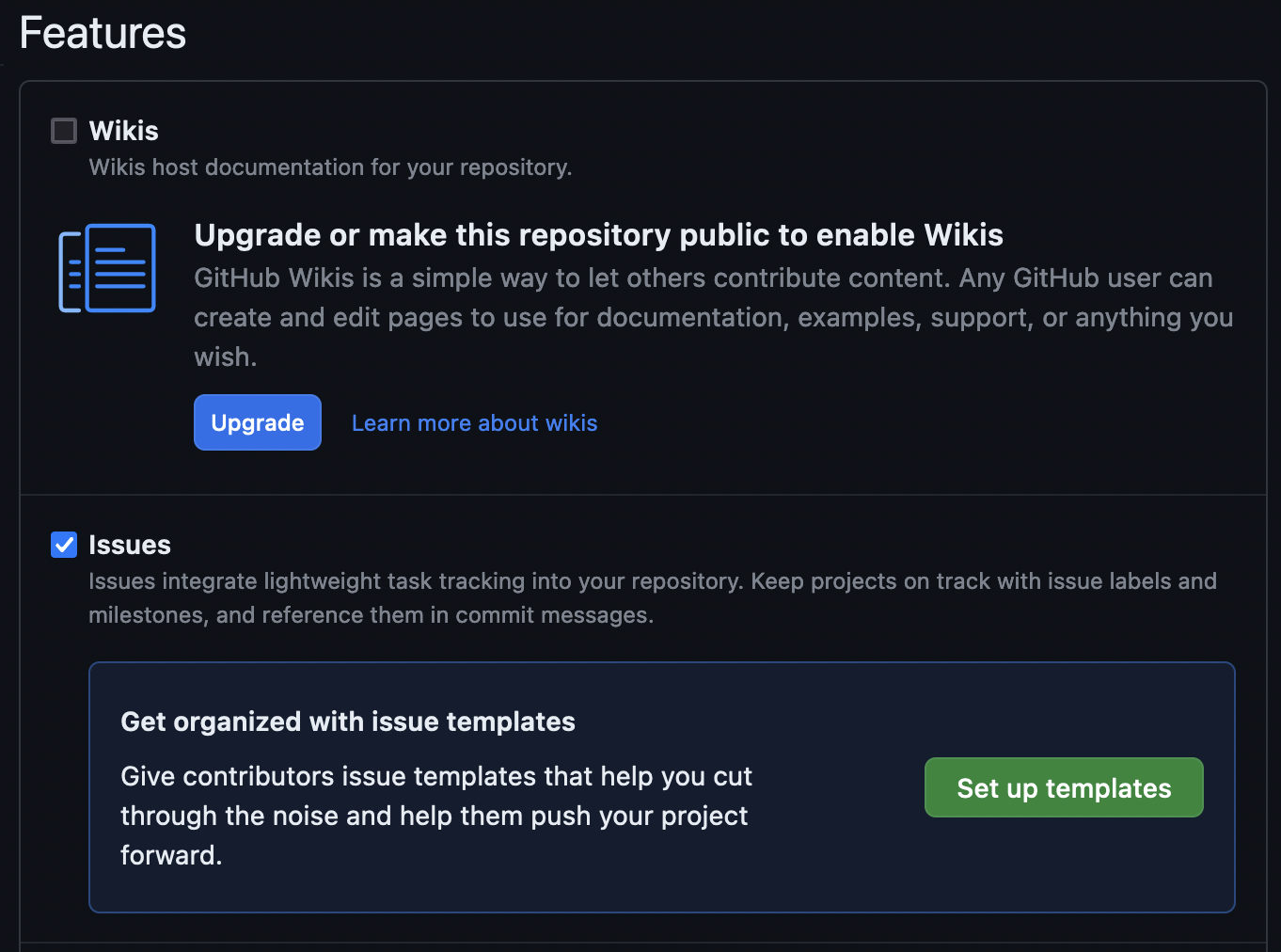
GitHub has a quick start default feature for those wishing to use Issue Templates. This can be enabled through the graphical user interface.
Click on the “Settings” tab in your repository.

It will load to the “General settings” page, under which there is a “Feature” section. Here you will see “Issues” (already checkmarked) with a button to “Set up templates.”
This will take you to a mostly blank screen on which there is an “Add template” dropdown with several options.
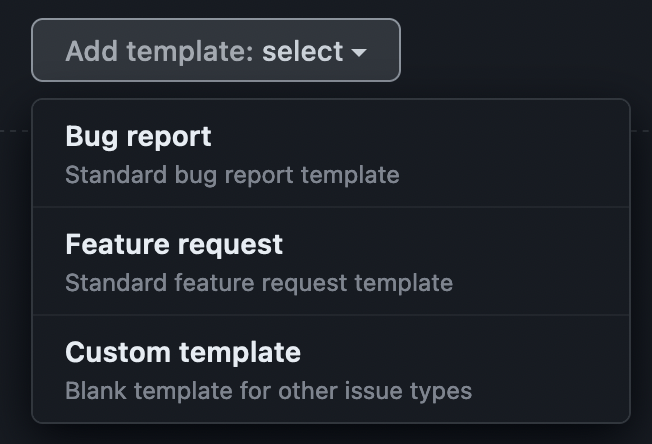
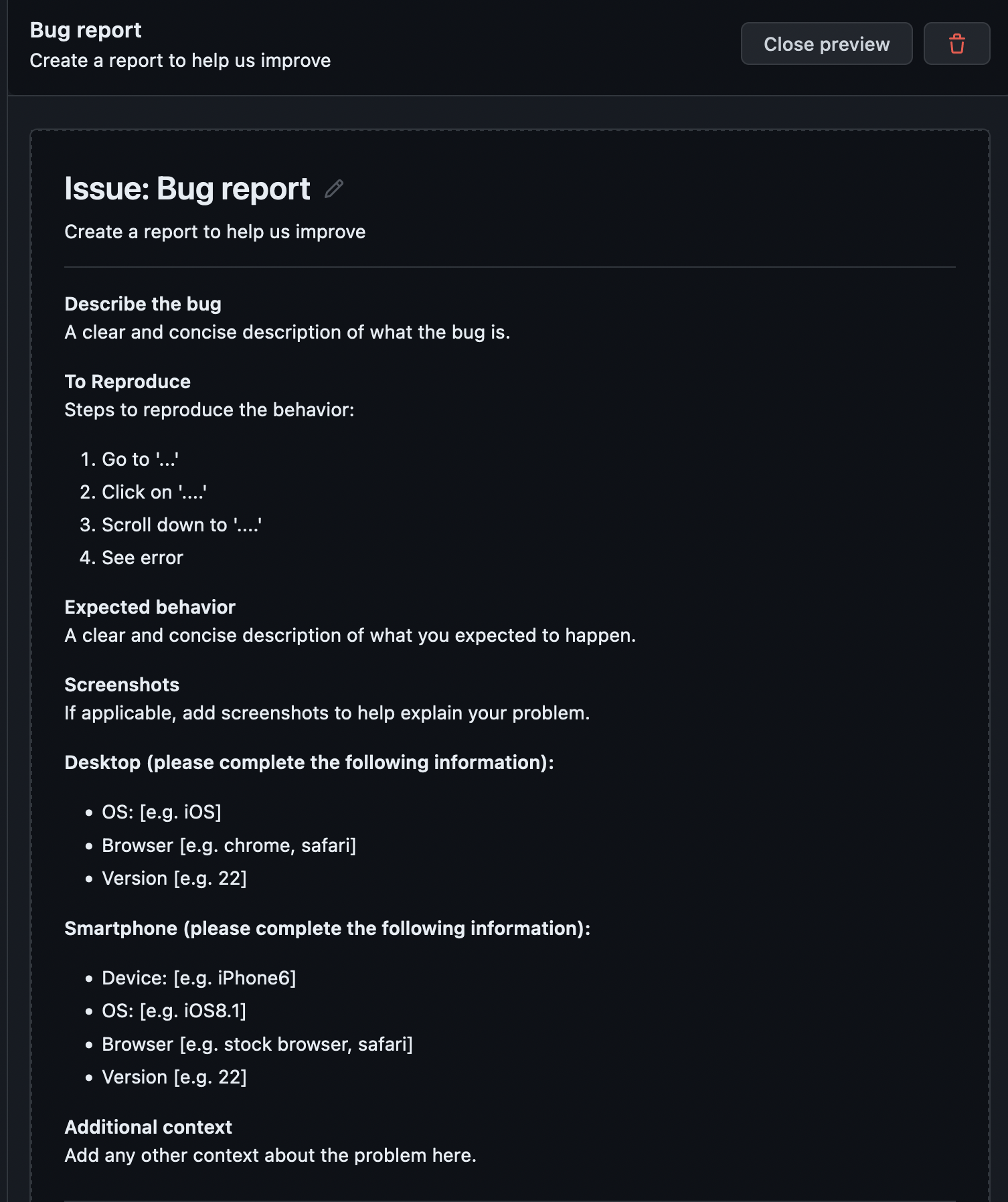
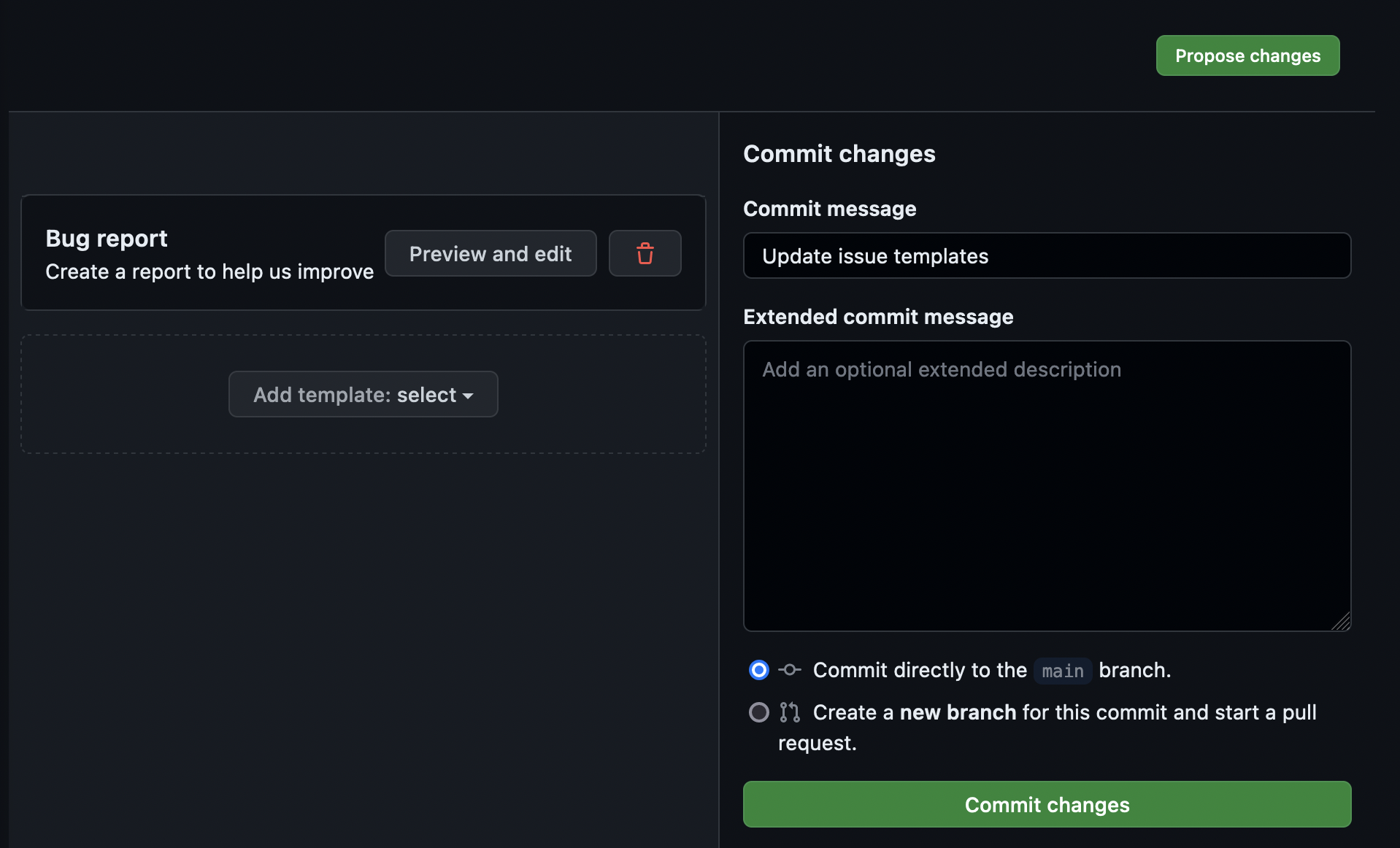
From this list, select “Bug report.” You will now see that the “Bug report” template shows up in the list of templates. Click “Preview and edit” to view the new template.
For now, we will leave this template as-is. To apply the new template to your repository, click the “Propose changes” button at the top of the page. This will load a commit message dialog box. Put whatever you desire in the commit message dialog box and commit the changes to your main branch.
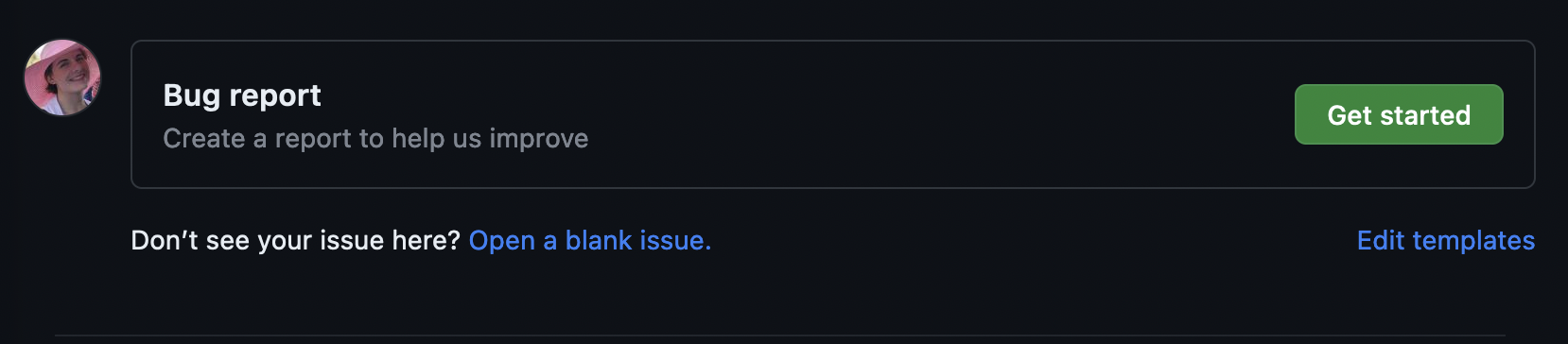
If we navigate to the Issues page now and click “New issue”, the template is now available in our options.
New Feature
Using the same steps covered, add the “Feature request” default template to your repository.
Now open an issue for each new template, filling out the sections with whatever you’d like.
Custom Issue Templates
We now have templates for both bug reports and feature requests. The StarSort maintainers have a request, though: they want a template for Design Discussions, so proposals like your “support FITS format” idea from earlier come in with a consistent shape. Let’s build that custom template.
When we created our first template, GitHub did the setup for us. If you navigate back to your main page, you will see a new directory has been created.

This new directory is where all the issue templates are located. The
directory currently has two files: bug_report.md and
feature_request.md. We are going to make a new one called
design_discussion.md.
Multiple Paths Available
We will do the rest of this lesson through the GUI; however, all of these steps can be done via command line and your preferred text editor. Do whatever feels right for you!
Issue Template Header
All issue templates start with a standard header that controls the appearance of the issue in GitHub. For our custom template, we will use:
MARKDOWN
---
name: Design Discussion
about: Start a design discussion for the project
title: ''
labels: ''
assignees: ''

---| Option | Purpose |
|---|---|
name |
The name of the issue template, as it appears on the “New issue” page |
about |
The description of the use of this template, as it appears on the “New issue” page |
title |
A default title to be applied to a new issue opened using this template |
labels |
Default labels to be applied to a new issue opened using this template |
assignees |
Default assignees to be assigned to a new issue opened using this template |
Issue Template Content
Following this header, we can add whatever other data or sections we desire, formatting the template using Markdown.
Discussion Section
Finish the “Design Discussion” template by adding the following sections:
- Description
- Motivation
Then commit the changes directly to your main branch.
The finished design_discussion.md combines the header
from above with two Markdown sections. Wording will vary, but it should
look something like:
MARKDOWN
---
name: Design Discussion
about: Start a design discussion for the project
title: ''
labels: ''
assignees: ''

---

## Description

<!-- A clear description of the design question or proposal. -->

## Motivation

<!-- Why does this matter? What problem or use case does it address? -->
After committing to main, the template appears as an
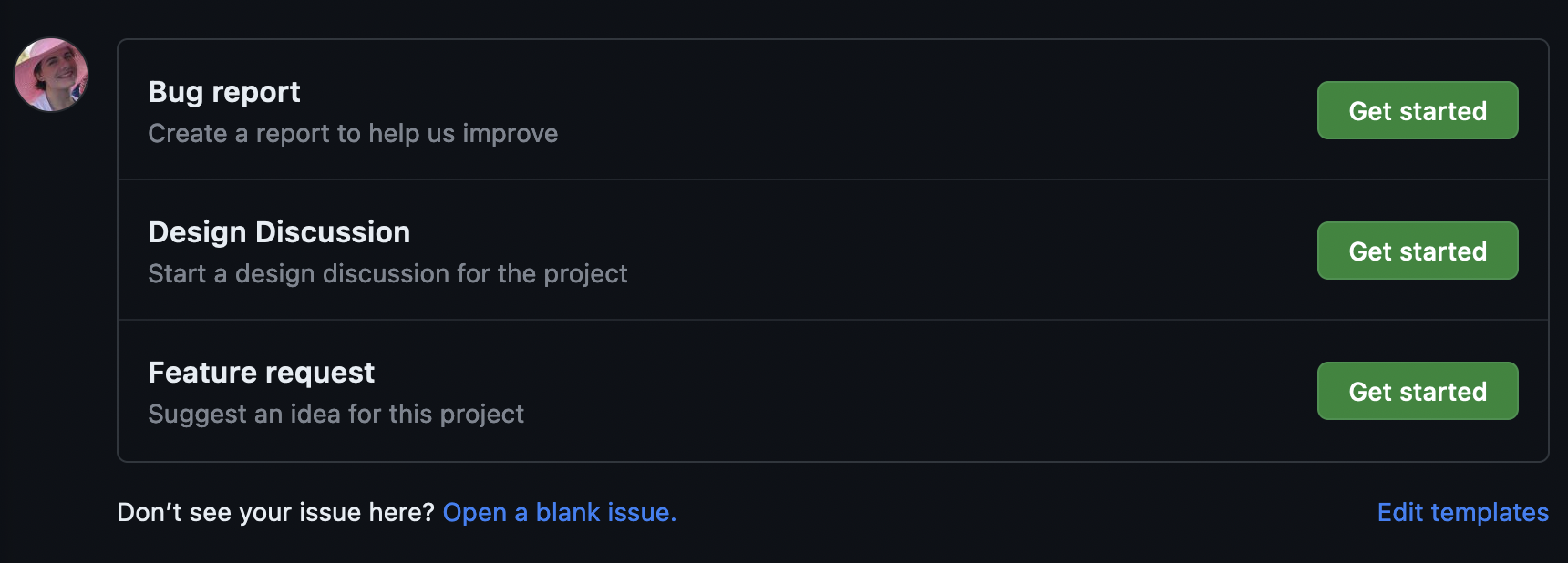
option on the “New issue” page.
GenAI: Draft a template in seconds
Templates are structured, repetitive text — exactly what LLMs do well. Try asking one: “Write a GitHub issue template (with YAML front matter) for reporting a performance problem in a scientific Python tool.” Then review and trim it to fit your project — AI tends to over-produce sections you don’t need, and “less is more” still applies.
We now have three issue templates available for use.
Incorporate External Links
Many projects have external websites or extra ways to get help outside of GitHub. Your project may, for example, have a Google Forum or a mailing list.
You can incorporate these into the “Template Chooser” page by using a
config.yml file in the .github/ISSUE_TEMPLATE
directory.
The config.yml file can have two different options:
blank_issues_enabled: # false or true
contact_links:
  - name: NAME
    url: LINK
    about: DESCRIPTION
The first option, blank_issues_enabled, controls whether
a user is allowed to open a blank issue if one of the provided templates
doesn’t quite fit their need.
The second option, contact_links, allows you to list
links to external sites that will show up in the template chooser.
Ask a Friend
Not every question belongs in the issue tracker — usage questions are
often better in a discussion forum or chat. StarSort has a community
discussions page, so let’s send people there instead of letting “how do
I…?” issues pile up. Create a config.yml for your
repository. In it:
- Enable blank issues
- Add a contact link named “StarSort Community Q&A” pointing to a discussions/forum URL of your choice (e.g., your repo’s GitHub Discussions page), with a description like “Ask usage questions here.”
Then commit the changes directly to your main branch.
Create .github/ISSUE_TEMPLATE/config.yml with the two
options filled in (your URL will differ):
YAML
blank_issues_enabled: true
contact_links:
  - name: StarSort Community Q&A
    url: https://github.com/YOUR-USERNAME/YOUR-REPO/discussions
    about: Ask usage questions here.
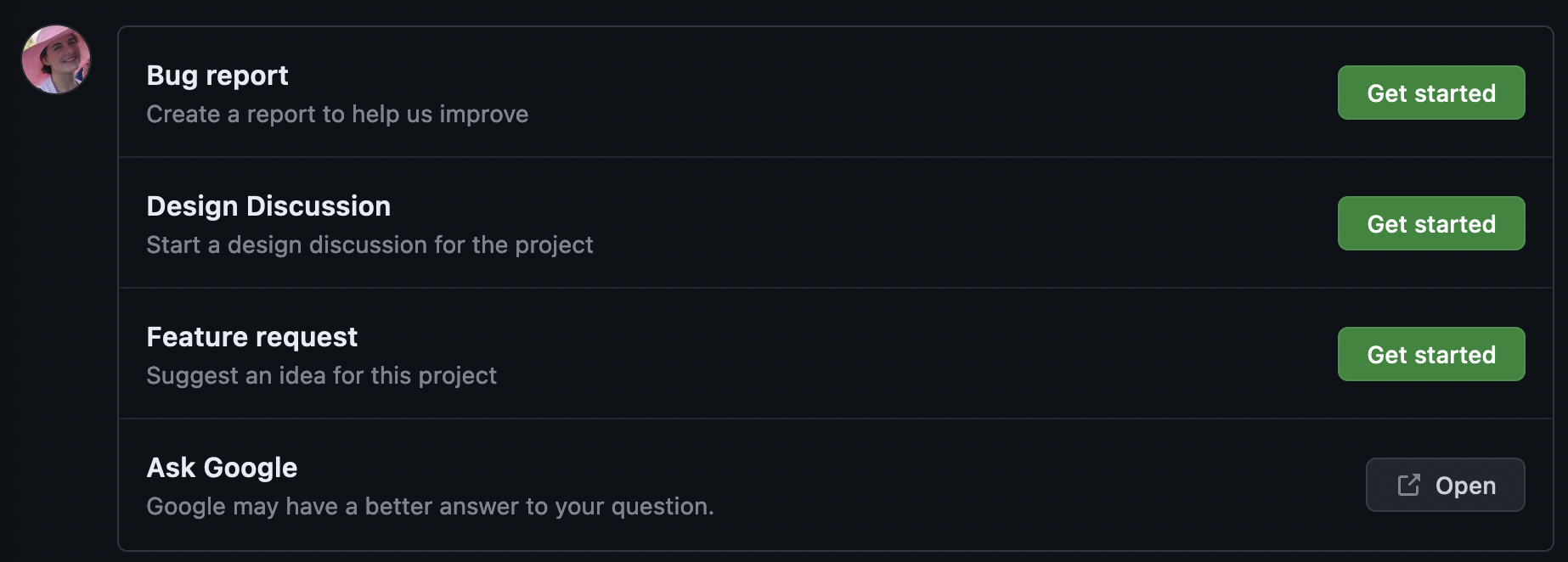
Once committed to main, the “New issue” template chooser
shows your existing templates plus a button for the “StarSort Community
Q&A” link. (Note: blank_issues_enabled: false would
hide the blank-issue option and push people toward your
templates and links instead.)
Our template chooser now shows our three templates plus the external community link.
And that’s all, folks! You now know much more about GitHub Issues.
- Templates can be incorporated into any GitHub repository and can make issue creation more structured.
- A good template incorporates the “good issue” table into every new report.
- External links can be listed with the templates to help direct users to external resources.
- GenAI can draft a template quickly — review and trim it to fit your project.